
Part 3. Ultimate Way to Stitch a TikTok Video
Under the context of stitching TikTok videos, Tipard Video Converter Ultimate comes in hand as an all-purpose editing solution that enables seamless modification, merging, and enhancement of videos. Elsewhere, the Versatile Media Conversion Software not only transforms videos into different formats but also provides a Video Merger option that simplifies the process of combining several video clips, like stitching them together for TikTok.
Step 1Download and Install the Tool
Go to the Tipard website to download Tipard Video Converter Ultimate for either your Windows or Mac operating system. Run the installer after the software is downloaded, and follow the instructions shown to set up the software. The installation process happens in just a few moments.
Step 2Launch Tipard Video Converter Ultimate
Tipard will now be able to access the software. As with the other features, the interface is straightforward, meaning that you have access to video conversion (editing and merging are also features). A few clicks means that you can start operating on your videos.
Step 3Import Your TikTok Videos
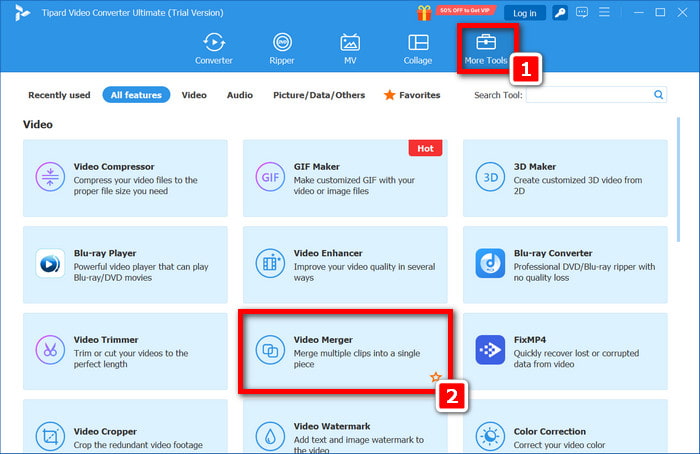
On the interface, click the tab that says More Tools and then select Video Merger. This will open up the tool that allows you to merge your TikTok videos. Begin importing your video clips, and you will be good to go.
Step 4Add TikTok Videos to the Video Merger
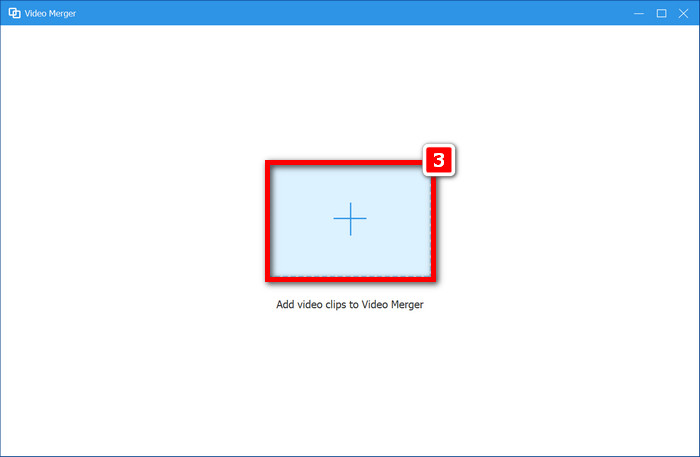
To get started, find the function that says Add video clips to Video Merger and then click on it. Look through your documents and choose the TikTok videos you want to merge. Subsequently, selecting them means that the selected clips will be stationed in the workspace and will be awaiting merging.
Step 5Include Additional Videos
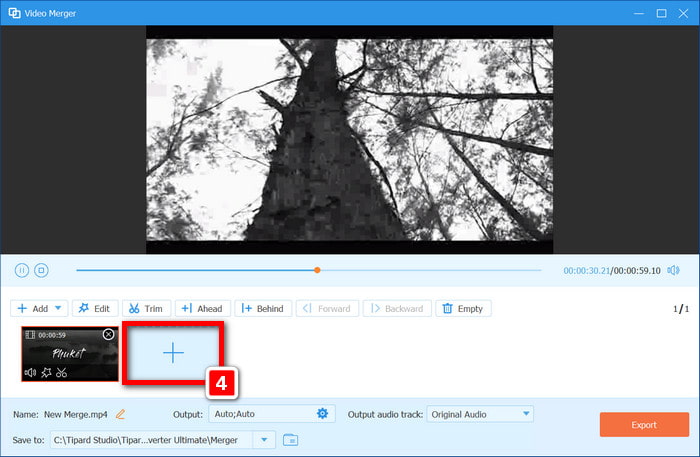
To add clips, just hit the + button and choose more videos. You can add as many clips as you want for your stitch, so you have complete control over the final product.
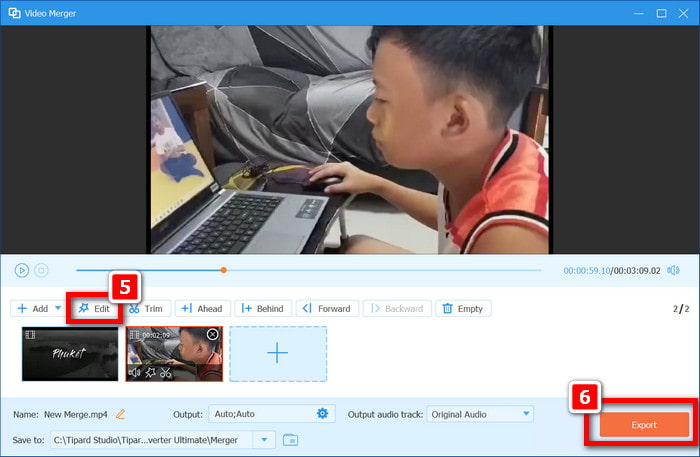
Step 6Edit and Export Your Video
If you want to edit your clips first, click the Edit button to trim, crop, and add filters. After you click Export, the software will create a video from the clips you edited. You will be able to save and upload it to TikTok.